Best AI Music Video Generator 2026: Visualizers to Canvas
One song can become six release assets, from a Spotify Canvas loop under $2 to a full lyric video, built from one visual system instead of five separate tools.
One song can legitimately become six different video assets — a full music video, a visualizer, a waveform loop, a spectrum animation, a lyric video, or a Spotify Canvas — and picking the wrong one first is why so many AI music videos still look like a tech demo instead of a release.
By the end of this guide you will know which of those assets your song actually needs, the workflow that turns one track into a coherent release package, and the prompts, costs, and export settings that keep every version — YouTube, TikTok, Reels, Canvas — looking like the same song.
The old workflow made that expensive. You hired a videographer, booked a location, edited one hero video, then paid again for vertical cuts, subtitles, lyric versions, and platform crops. The 2026 workflow collapses that into one system: upload the song, map the beat and sections, generate a visual direction, produce a few strong style frames, animate them with controlled motion, add lyrics where useful, then export every platform version from the same visual identity.
What is an AI music video generator?
An AI music video generator is software that turns a song, audio file, lyric sheet, album cover, or creative brief into video assets. The simplest version creates motion behind a track. The better version understands the release job: it can make a music visualizer for YouTube, a lyric video for fans who care about the words, a Spotify Canvas loop for the track page, and short-form clips for discovery feeds.
Most creators arrive at the same need from different angles. One artist wants a quick music visualizer. Another needs an audio waveform visualizer for a clean acoustic release. Another wants a Spotify Canvas loop. Another needs to add lyrics to a vertical hook clip. These are not separate strategies. They are separate doors into the same music-to-video workflow.
- Music visualizer: waveform bars, spectrum lines, particle rings, cover-art motion, or abstract visuals that react to the song.
- Audio waveform visualizer: a visible sound wave, usually cleaner and more minimal than a full spectrum visualizer.
- Audio spectrum visualizer: frequency bars or circular spectrum graphics that feel more energetic and beat-reactive.
- Lyric video: lyrics timed to the vocal line, often with kinetic typography and motion backgrounds.
- Spotify Canvas: a short 3-8 second 9:16 loop for a Spotify track page.
- AI music video: a broader asset that may combine narrative scenes, style frames, visualizer motion, lyrics, and platform exports.
FacelessGenie fits the end-to-end version of this category — the full pipeline already handles creative planning, image generation, image-to-video animation, voice and audio assets, captions, Remotion export, and Cloudflare R2 delivery. For a music video, the center of gravity changes from narration-first to track-first. The song provides the pace. The visuals follow the section map.
What should one song become?
A song does not need only one video. It needs the right set of release assets. The full YouTube upload, the Spotify Canvas, the vertical hook, the lyric clip, and the visualizer can all come from the same creative direction, but each one has a different job. Decide the asset mix first, then generate the visuals.
| Asset | Use it when | Best format | Main job |
|---|---|---|---|
| Full AI music video | The song has a strong story or campaign budget | 16:9 or 9:16 | Build a world around the track |
| Music visualizer | You need a fast official song video | 16:9, 9:16, 1:1 | Make the audio feel alive |
| Audio waveform visualizer | The song needs a clean minimal look | 16:9 or 9:16 | Show the sound without visual clutter |
| Audio spectrum visualizer | The beat needs visible energy | 16:9 or 9:16 | Make drops and drums feel reactive |
| Spotify Canvas | The track is going live on Spotify | 9:16, 3-8s loop | Turn the cover into a living loop |
| Lyric video | The hook or writing is the selling point | 16:9 and 9:16 | Help fans remember and share the words |
| Short-form hook clip | You want discovery on TikTok, Reels, or Shorts | 9:16 | Put the strongest moment in the feed |
| Feed teaser | You need a launch reminder or announcement | 1:1 or 4:5 | Give the release a clean social post |
The best release package usually combines three to five of these assets. For example, a lo-fi instrumental may only need a full visualizer, a Canvas loop, and a vertical excerpt. A pop song with a memorable chorus may need a lyric video, a hook clip, and a Canvas. A cinematic single may deserve a full AI music video, then smaller cuts built from the best scenes.
Pick the right format before you generate anything
The biggest mistake in AI music video creation is starting with a prompt instead of a format decision. A cinematic narrative video, a visualizer, and a Spotify Canvas loop are not interchangeable. If you ask for the wrong format, you will either overspend, create a video that is hard to crop, or publish something that looks polished but does not help the song travel.
| Format | Best for | Length | Difficulty | Why use it |
|---|---|---|---|---|
| Music visualizer | EDM, lo-fi, rap, instrumentals, remixes | 15s-full song | Low | Fastest way to turn audio into a branded video |
| Audio waveform visualizer | Acoustic, rap, podcasts, clean brand assets | 15s-full song | Low | Minimal, readable, less distracting than spectrum bars |
| Audio spectrum visualizer | EDM, phonk, dance, energetic tracks | 10s-full song | Low-medium | Feels more reactive and performance-driven |
| Lyric video | Songs with strong hooks or emotional writing | 15s-full song | Medium | Turns the words into the main shareable asset |
| Spotify Canvas | Every official release | 3-8s | Low | Small asset, high visibility on the track page |
| Narrative AI music video | Story-heavy lyrics and campaign hero assets | 60s-full song | High | Creates a bigger world around the song |
| Short-form promo | Discovery on TikTok, Reels, Shorts | 8-30s | Medium | Puts the hook in front of new listeners |
For most independent artists, the right first package is not a full narrative music video. It is one clean visualizer, one lyric hook clip, one Spotify Canvas loop, one vertical chorus cut, and one YouTube version. That gives the track more distribution surface without depending on perfect character continuity or a complicated story.
The song-to-video workflow that works in 2026
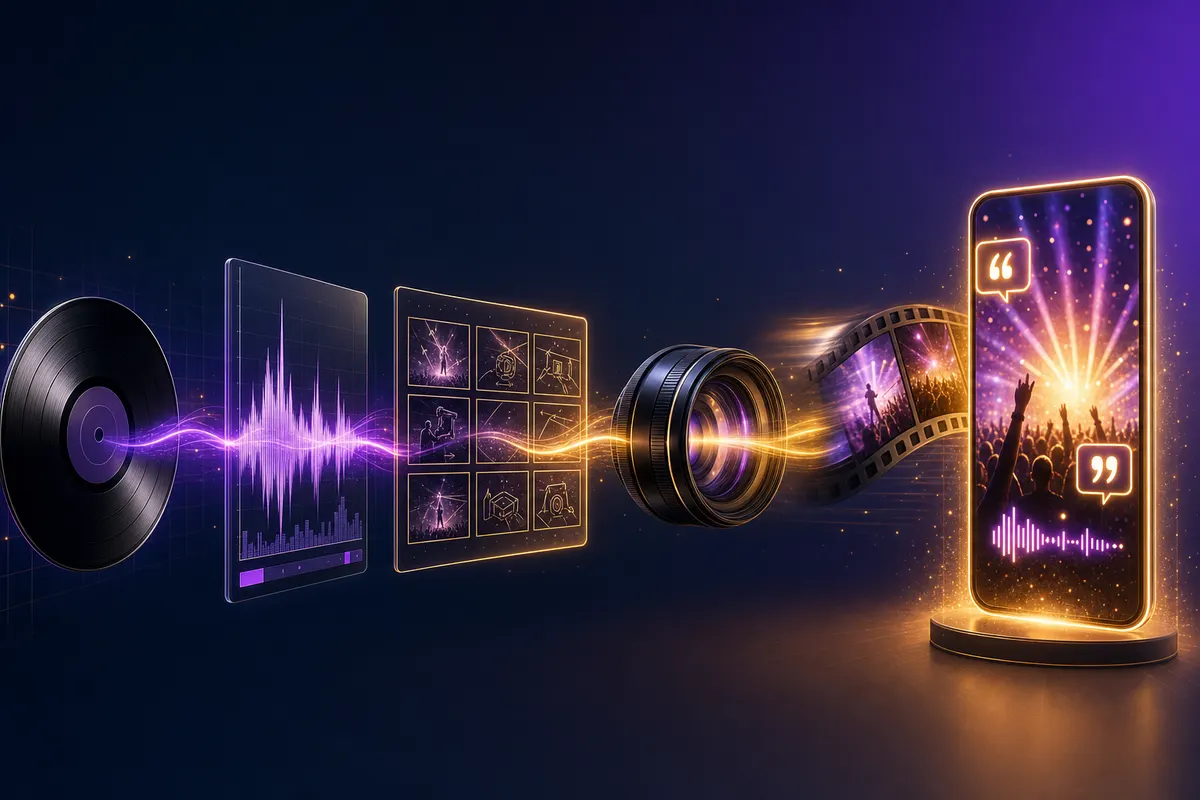
A strong AI music video does not come from typing the song title into a generator and hoping the model understands taste. It comes from breaking the track into usable parts. Intro, verse, pre-chorus, chorus, bridge, drop, outro, and instrumental sections each need a different amount of motion. The chorus might carry the strongest visual. The verse might need slower cuts. The bridge might need a new color palette or a visual reset.
- 1Start with the release goal. Decide whether the main asset is a full YouTube video, a TikTok/Reels/Shorts push, a Spotify Canvas, a lyric video, or a visualizer.
- 2Map the song. Mark intro, verse, chorus, bridge, drop, and outro. If lyrics exist, mark the hook lines and emotional peaks.
- 3Choose the visual identity. Pull from the cover art, artist colors, genre, mood, and audience. A lo-fi track, drill track, worship song, and hyperpop single should not share the same motion style.
- 4Create style frames before animation. Generate still frames for the main visual direction. Fix composition, colors, and subject continuity before spending credits on video.
- 5Animate only what needs motion. Use slow camera push, light sweep, vinyl rotation, waveform pulse, particle drift, or loop-safe object motion. Avoid random camera chaos.
- 6Add lyrics or captions with purpose. Full lyric videos need line timing. Short promos need the hook, title, artist name, or CTA. Visualizers often need less text.
- 7Export a package. Render 16:9 for YouTube, 9:16 for Shorts/Reels/TikTok/Canvas, 1:1 or 4:5 for feed, and a clean thumbnail or poster.
This is also where AI saves the most time. Once the visual system exists, it can be resized, trimmed, and repurposed. The full YouTube version and the vertical hook clip should feel like they belong to the same release. The Spotify Canvas should not look like an unrelated animation. The album art, waveform, lyric typography, colors, and motion should all point back to the same song identity.
Music visualizers: waveform, spectrum, sound wave, and online visualizer workflows
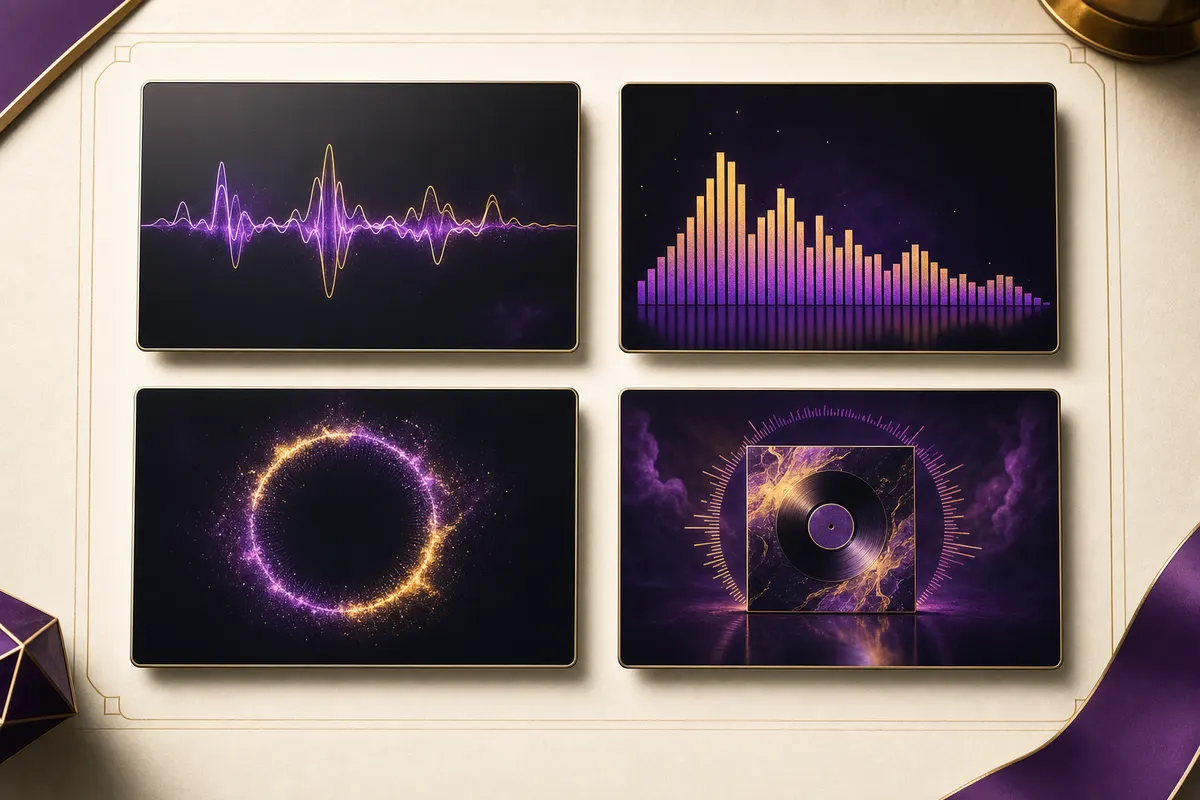
A music visualizer is the fastest way to publish a song video without filming anything. It turns audio into motion: waveform lines, spectrum bars, particles, cover-art loops, vinyl motion, camera drift, light pulses, or abstract shapes that follow the beat. Make it quickly, keep it on-brand, export it in any shape.
The free and online visualizer searches usually come from creators who need speed. That is fine for a draft. A free music visualizer can help test the cover art, color palette, waveform style, and mobile crop. But the final release asset should be checked for watermark, resolution, compression, and template branding. A free export with a vendor logo can make an official artist channel look cheap.
Waveform visualizer vs spectrum visualizer
An audio waveform visualizer shows the shape of the sound over time. It is readable, minimal, and good for rap, acoustic, podcasts, songwriter content, and clean branded assets. A sound wave visualizer is often the same idea with a simpler line or pulse. It works when you want the music to feel intimate instead of explosive.
An audio spectrum visualizer shows frequency energy as bars, rings, or radial lines. It feels more reactive and electronic. Use it for EDM, dance, phonk, trap, club edits, remixes, workout tracks, and any song where the beat should visibly hit. Spectrum bars can look generic if the design is not tied to the cover art, so color and composition matter.
| Visualizer type | Best genres | Visual feel | Watch out for |
|---|---|---|---|
| Waveform line | Rap, acoustic, songwriter, podcast | Clean and focused | Can look too plain without strong cover art |
| Spectrum bars | EDM, phonk, dance, trap | Energetic and beat-reactive | Can look like a generic template |
| Circular spectrum | Electronic, ambient, instrumental | Album-cover centered | Mobile crop can cut the ring |
| Particle visualizer | Lo-fi, cinematic, ambient | Mood-first and soft | May not feel synced enough |
| Cover-art motion | All release types | Brand-safe and repeatable | Needs high-resolution artwork |
A good online music visualizer workflow is simple: upload WAV or high-quality MP3, add cover art, choose waveform or spectrum, match the palette to the release art, preview on mobile, export a vertical hook clip first, then export the full 16:9 YouTube version. Do not build only for desktop. Most people will discover the song on a phone.
Spotify Canvas: dimensions, loop rules, and AI generation
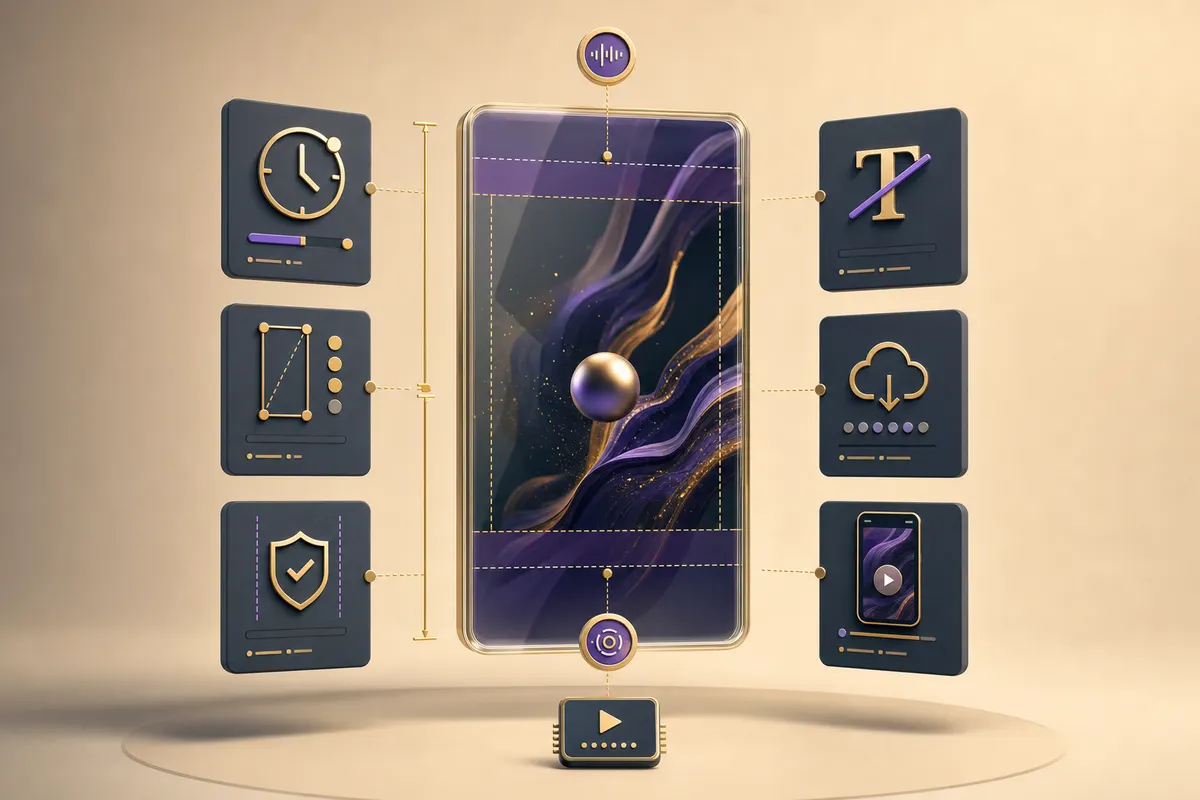
Spotify Canvas is a short looping vertical video that appears on a track page in Spotify. It is not a full music video. It is not a lyric video. It is closer to a living album cover. The best Canvas assets are simple, loop-safe, and immediately recognizable as part of the release identity.
Canvas is easy to overthink. The goal is simple: turn a cover, hook, or visual motif into a short vertical loop that feels good every time it repeats. Specs come first, taste comes second. If the loop jumps, crops badly, or tries to communicate too much, it will feel amateur even if the art is beautiful.
- Use a 9:16 vertical frame so the asset feels native on mobile.
- Keep the loop between 3 and 8 seconds.
- Avoid heavy text. Canvas is not the place for a full title card or lyric paragraph.
- Use loop-safe motion: vinyl rotation, light sweep, smoke drift, particle pulse, cloth movement, camera push, or subtle cover-art parallax.
- Preview the loop multiple times in a row. If the restart is obvious, trim or redesign the motion.
- Keep the visual tied to the album art so listeners recognize the release.
A practical AI Spotify Canvas workflow starts with the cover art. Generate a vertical extension of the cover or a related scene. Animate one or two elements only. Trim to the cleanest loop. Compress carefully. Preview on a phone. The temptation is to make Canvas cinematic, but the winning version is usually restrained. It should make the track page feel alive, not distract from the song.
Lyric videos: how to make one and how to add lyrics to video
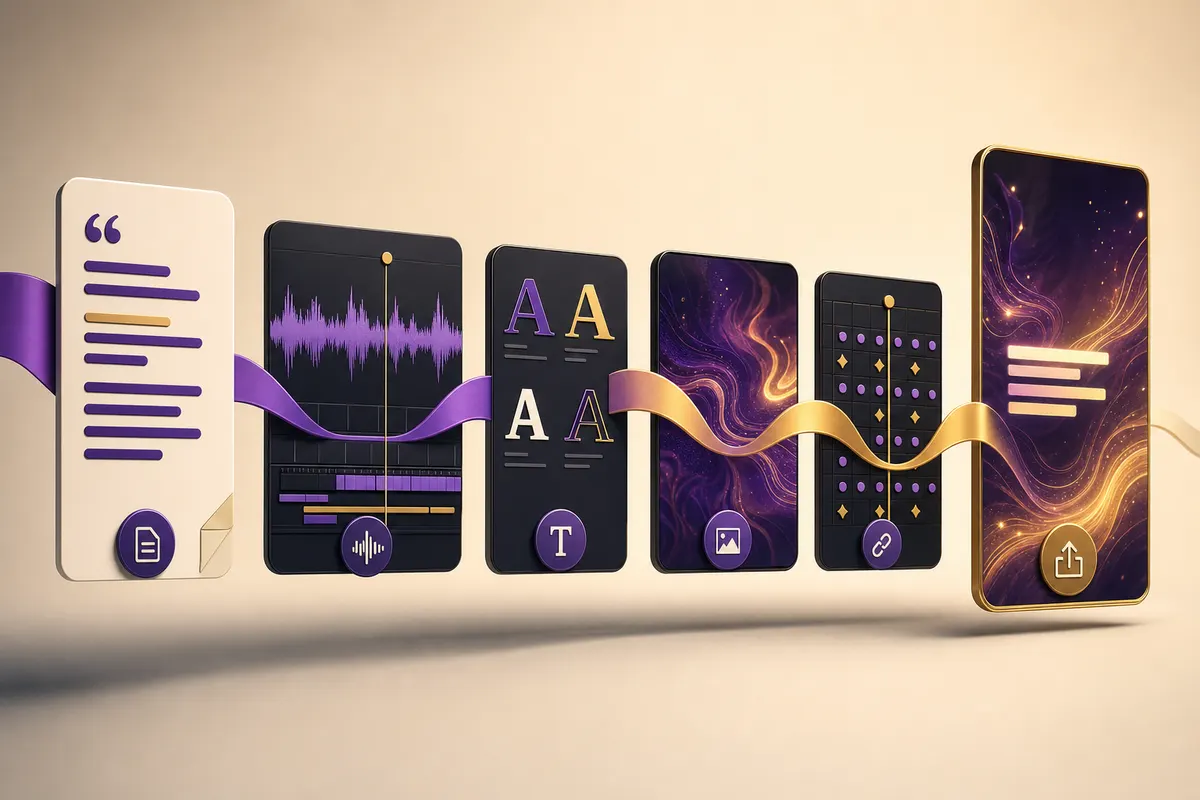
Lyric videos are different from visualizers because the words are the product. If the song has a memorable hook, clever rap bars, emotional writing, or a chorus fans want to quote, a lyric video can outperform a generic visualizer. But it also has less tolerance for mistakes. If lyrics arrive late, overlap awkwardly, or hide under platform UI, the video feels broken immediately.
A good lyric video is practical before it is decorative. The viewer should be able to follow the words without fighting the design. The reliable process is timing first, style second, motion third, export last.
- 1Start with final lyrics. Do not time a draft lyric sheet unless you want to redo the whole video.
- 2Create a line-level timing pass. Mark when each line appears and disappears.
- 3Choose the sync style. Full line, karaoke word highlight, punchline emphasis, lower-third captions, or kinetic typography.
- 4Design mobile-safe typography. Big type, high contrast, no tiny decorative fonts, and no critical words under TikTok/Reels/Shorts UI.
- 5Build the motion background. Use cover-art motion, visualizer loops, abstract scenes, or AI-generated video clips that do not fight the lyrics.
- 6Add emphasis only where it helps. Chorus lines, title phrase, emotional turns, and rap punchlines deserve stronger movement.
- 7Export separate vertical and widescreen versions. A 16:9 lyric video cropped into 9:16 usually fails.
The easiest way to add lyrics to video is not to paste the entire song into captions and call it done. Use a lyric hierarchy. The chorus can be bold and central. Verses can be smaller and cleaner. Bridge sections can use slower fades. Rap sections may need word-level emphasis. The right lyric video feels timed to the performance, not just the transcript.
Prompt formulas for better AI music videos
Bad prompt: "make a cool music video for my song." It gives the model no section, genre, camera direction, motion language, color palette, or platform shape. Good prompts describe the job like a director would: what part of the song, what emotional tone, what visual style, what movement, what should stay consistent, and what output format the scene is for.
“For the chorus of a dark synth-pop track, create a 9:16 AI music video scene: lone singer silhouette on a wet rooftop at night, purple neon reflections, warm gold rim light, slow camera push, rain particles drifting gently, cinematic editorial music-video style, no readable text, loop-friendly motion.”
“Create a clean audio waveform visualizer for an acoustic song: warm cream paper background, dark slate album art card, single gold waveform line across the center, subtle purple pulse rings, minimal motion, premium editorial release asset, export-safe for 16:9 and 9:16.”
“Make a Spotify Canvas loop from album art: 9:16 vertical frame, 6-second seamless loop, cover art extended into a cinematic scene, slow vinyl rotation, soft gold light sweep, no heavy text, no cuts, mobile-safe composition.”
“Create a lyric video scene for the hook: bold kinetic typography, high-contrast white lyric bars with gold emphasis on the title phrase, purple-gold motion background, line-level sync, large mobile-safe text, no clutter behind the words.”
The prompt should include negative constraints too. Say no copyrighted characters, no celebrity likeness, no random unreadable text, no distorted instruments, no extra fingers if hands are visible, no fast camera whip unless the song actually needs it, and no scene cuts for Canvas. Music videos can tolerate stylization, but they cannot tolerate messy branding when the asset is attached to an official release.
How much does an AI music video cost?
Cost depends on ambition. A Canvas loop is cheap because it is short and can use one controlled motion idea. A music visualizer is also cheap if it uses cover art and waveform animation. A lyric video costs more because timing and typography matter. A full narrative AI music video costs the most because continuity is hard: characters, outfits, locations, lighting, and emotional tone need to survive across many clips.
| Asset | Typical length | Cost range | Best use |
|---|---|---|---|
| Spotify Canvas | 3-8s | $0.50-$2 | Every official release |
| Hook promo | 8-20s | $1-$4 | TikTok, Reels, Shorts teaser |
| Waveform visualizer | 15s-full song | $1-$8 | Clean audio-first video |
| Spectrum visualizer | 15s-full song | $2-$10 | Beat-reactive release asset |
| Lyric video | 30s-full song | $4-$18 | Songs with strong words |
| Narrative AI music video | 60s-full song | $12-$60 | Hero campaign asset |
| Release export pack | 5-8 files | $5-$25 | Launch week distribution |
The lowest-cost publishable route is a visualizer plus short-form cuts. The highest-risk route is a full narrative video for the entire song. That does not mean narrative is bad. It means narrative should be reserved for songs where story is the point and the artist has time to review continuity. For most releases, the better business decision is to make five useful assets instead of one fragile asset.
Export settings for YouTube, Shorts, Reels, TikTok, Spotify Canvas, and feed posts
Export settings are not an afterthought. A good music video can underperform simply because the text sits under UI, the waveform is too small on mobile, the Canvas loop has a visible jump, or the YouTube version is a cropped vertical clip with dead space. Each platform should get a file built for that platform.
| Platform | Format | Length | Notes |
|---|---|---|---|
| YouTube | 16:9, 1920x1080 or higher | Full song or extended visualizer | Use clean title, thumbnail, and description |
| YouTube Shorts | 9:16, 1080x1920 | 8-45s | Hook first, safe-zone text, no slow intro |
| TikTok | 9:16, 1080x1920 | 8-30s | Start on the strongest audio moment |
| Instagram Reels | 9:16, 1080x1920 | 8-45s | Keep title/lyrics away from UI edges |
| Spotify Canvas | 9:16 vertical | 3-8s | Loop-safe, minimal text, cover-art aligned |
| Instagram feed | 1:1 or 4:5 | 8-30s | Good for visualizer snippets and release reminders |
| Stories | 9:16 | 5-15s | Leave space for stickers, links, and repost UI |
A practical release pack from one song looks like this: full 16:9 YouTube visualizer, 9:16 chorus clip, 9:16 lyric hook clip, 9:16 Spotify Canvas loop, 1:1 feed visualizer, and a poster thumbnail. If the track has a strong story, add a narrative hero video. If it does not, keep the system clean and repeatable.
How to choose the best AI music video generator
Most AI music video tools look similar from the outside because they all show a prompt box and a preview. The useful differences only show up after you try to ship a real release. A good generator should not just make one attractive clip. It should help you move from song to campaign assets without rebuilding the same idea five times in five different editors.
Start by checking the workflow boundary. Some tools are excellent at image-to-video but stop there. They make beautiful five-second clips, then leave you to handle lyrics, edits, crops, compression, thumbnails, and platform exports somewhere else. That is fine if you already know editing. It is not ideal if you want the generator to produce the release package.
Next, check whether the tool respects audio structure. For music, duration matters less than section logic. A 20-second chorus clip should start on the hook, not on the first quiet second of the file. A full visualizer should have more energy during the drop than the intro. A lyric video should put the words on the screen when the vocal arrives, not when the transcript line happens to be parsed.
- Use a visualizer-first tool if you only need waveform, spectrum, or cover-art motion.
- Use an image-to-video tool if you need one cinematic scene or Canvas-style loop.
- Use a lyric-video creator if lyric timing is the main job and the background can stay simple.
- Use an end-to-end AI video generator if you need prompts, visuals, animation, captions, music handling, and exports in one workflow.
- Use a manual editor when the release needs frame-level art direction or heavy brand approvals.
The best tool for a bedroom producer releasing weekly is not the same as the best tool for a label campaign. Weekly creators need speed, batch exports, and repeatable templates. Labels need approval controls, higher polish, and brand consistency. A social-first artist needs vertical hooks and Canvas loops. A YouTube-first instrumental channel needs long visualizers and thumbnails. The right generator is the one that matches the publishing job, not the one with the most cinematic demo reel.
| Need | Choose this workflow | Avoid |
|---|---|---|
| Fast song upload for YouTube | Cover-art visualizer plus 16:9 render | Narrative scenes for every verse |
| TikTok or Reels discovery | 9:16 hook clip with lyric or visualizer focus | Slow intros and tiny title cards |
| Spotify release polish | 3-8 second Canvas from album art | Busy edits with visible loop jumps |
| Fan sing-along asset | Line-timed lyric video | Auto captions with no timing review |
| Premium campaign hero | Storyboarded narrative scenes | One prompt for a full song |
A practical release plan for one song
The easiest way to use AI badly is to generate assets after the song is already live. The better workflow starts before release day. Treat the video assets like the cover art, title, metadata, and distribution upload: part of the launch package. That gives you time to test crops, review lyrics, and make sure every platform version feels intentional.
7 days before release: build the visual system
Start with the album art, genre, and release emotion. Generate three visual directions: one safe, one more cinematic, and one more social. Do not animate yet. Compare still frames on a phone. If the cover art is dark, test whether the visualizer still reads inside a small mobile feed. If the song title matters, test the typography. If the artist identity is minimal, keep the motion minimal too.
5 days before release: create the core assets
Build the full-song visualizer or lyric video first because it defines the visual language. Then cut the vertical hook clip from the same system. Then make the Spotify Canvas. This order prevents the release from looking fragmented. If the Canvas is made first and the lyric video is made later with a different palette, the campaign starts to feel like five unrelated experiments.
3 days before release: test platform crops
Preview every file in the shape where it will be watched. A YouTube visualizer can look perfect on desktop and unreadable as a Short. A lyric line can sit cleanly in the editor and then disappear behind TikTok buttons. A Canvas loop can feel smooth once and annoying after five repeats. The QA pass should happen on a phone, not only inside the generation tool.
Release day: publish in sequence
Publish the full YouTube visualizer or lyric video first, then push the strongest vertical hook to TikTok, Reels, and Shorts. Use the Canvas on Spotify from day one. Post a feed version if the cover art is strong enough. Do not post every cut at the same minute with identical captions. Give each platform its own framing while keeping the visual identity consistent.
After 48 hours, check which asset drove the best save, share, replay, or click behavior. If the lyric hook wins, generate two more lyric variations. If the visualizer wins, make a second cut around the drop. If the Canvas gets positive listener feedback, use that visual motif in the next single. The advantage of AI is not just speed before launch. It is faster iteration after real audience signals arrive.
The quality check before publishing
AI music videos fail in small visible ways. The first frame looks great, but the waveform is off beat. The lyric timing drifts by half a second. The singer silhouette changes outfits between scenes. The Canvas loop jumps. The phone crop cuts off the title. The model invents fake letters in the background. These are not abstract quality issues. Viewers notice them quickly because music assets are watched repeatedly.
- 1Watch once with sound. Check whether the visual energy follows the song structure.
- 2Watch once muted. Check whether the asset still explains the song title, artist identity, or visual mood.
- 3Watch on a phone. Check safe zones, type size, crop, and whether the focal point is still visible.
- 4Loop the Canvas ten times. If the restart is obvious, fix the trim or reduce motion.
- 5Check lyric timing line by line. A beautiful lyric video with late words is still wrong.
- 6Pause on five random frames. Look for fake text, broken hands, warped instruments, melted faces, or inconsistent characters.
- 7Compress and rewatch. Social platforms will recompress the file, so avoid tiny details that only work in the original export.
The final test is brand consistency. Put the YouTube thumbnail, Canvas, vertical hook, and lyric clip next to each other. If they look like they came from the same release, you are close. If they look like four different tools made four different moods, simplify the system. Use the same palette, album-art reference, waveform treatment, and typography rules across every export.
Common AI music video mistakes
- 1Starting with a cinematic prompt before deciding the platform and asset type.
- 2Trying to make a full narrative video when the song only needs a visualizer and hook clips.
- 3Using one motion style for the whole song. Verse, chorus, bridge, and drop need different energy.
- 4Publishing watermarked free visualizer exports on official artist channels.
- 5Cropping a 16:9 lyric video into 9:16 instead of designing mobile-first lyrics.
- 6Making Spotify Canvas too busy. The best Canvas loops are simple and seamless.
- 7Putting small text near the bottom-right of vertical videos where platform UI covers it.
- 8Using copyrighted characters, celebrity likenesses, or obvious derivative fandom prompts in release assets.
- 9Letting AI invent unreadable fake text on album art, posters, signs, or lyric cards.
- 10Forgetting that the song is the product. The visuals should lift the track, not compete with it.
The test that actually matters is whether a stranger scrolling from the Canvas to the TikTok hook to the YouTube visualizer would guess they came from the same song — not whether any single frame looks expensive on its own. Build that visual system once and every export reuses it, so the release ships as one campaign instead of five disconnected experiments; try it on FacelessGenie with your next track and generate the whole set from a single song upload.
Frequently asked questions
The best AI music video generator is the one that can create a full release package, not only one clip. For most artists, that means visualizers, lyric clips, Spotify Canvas loops, vertical promos, and YouTube exports from the same song identity. FacelessGenie is built for that end-to-end workflow.
Ship your first faceless video today.
Pick your niche. Pick your models. We render. From idea to finished short in under 7 minutes — no camera, no editor.
Keep reading
YouTube Clip Maker 2026: Turn Long Videos into Viral Shorts
A senior editor costs $28 per Short. Our AI pipeline produced 22 Shorts from the same podcast for $0.65 each — in 12 minutes, not 8 hours. Here's how the pipeline works and the exact workflow to run it yourself.
Best Free AI Video Generator in 2026, Ranked (8 Tools Tested)
One of the eight free AI video generators we tested made us wait 47 minutes for a 45-second export; another charges $3.10 for a video a rival delivers at $0.30. Here's exactly where each tool wins, where it quietly costs a weekend, and which one fits your workflow.
AI Explainer Video Generator 2026: Ship One in 10 Minutes
A 60-second animated explainer that cost $15,000 in 2022 now renders in 10 minutes for under $20 — here's the 5 styles that convert, the 7-rule script formula, and the full AI workflow behind it.