How to Clip a YouTube Video (3 Ways, Free) in 2026
You can clip a YouTube video in under a minute with the built-in Clip button, but it only makes a link. If you want an actual vertical file with captions for Shorts or TikTok, you need one of the other two methods. Here are all three, with when to use each.

There are three different things people mean by "clip a YouTube video", and they need three different tools. If you want to share a 30-second moment with a friend, YouTube already has a button for that. If you want a real video file you can post on Shorts, TikTok or Reels, you need either an editor or an AI clip maker. This guide walks through all three, in the order most people should try them.
Quick answer: which method do you need?
| You want to... | Use | Output | Time |
|---|---|---|---|
| Share a funny moment with someone | YouTube Clip button | A link that plays 5 to 60 seconds inside YouTube | 1 minute |
| Post one specific segment on Shorts or TikTok | Download + cut in an editor | A video file you trim, crop and caption yourself | 20 to 40 minutes per clip |
| Turn a podcast or long video into a week of posts | AI clip maker | Several vertical 9:16 clips with captions, ready to upload | A few minutes for the whole video |
Method 1: YouTube's built-in Clip button
YouTube added Clips so viewers can highlight a piece of a video without downloading anything. It works on most public videos and live streams where the creator has left the feature on. The result is a shareable link, not a file: whoever opens it watches your selected segment inside the normal YouTube player, with credit and a link back to the full video.
- 1Open the video on desktop or in the YouTube app and pause on the moment you want.
- 2Click the scissors icon under the video (labelled Clip). If you don't see it, the creator has turned Clips off for that video.
- 3Drag the handles to choose a segment between 5 and 60 seconds. Give it a short title (140 characters max).
- 4Press Share clip. Copy the link, or send it straight to a chat app or social network.
Good for: reactions, quotes, "watch this part" moments. Not good for: anything you want to post as your own video, because there is no download and the clip lives on YouTube. It also can't crop to vertical or add captions.
Method 2: Download your video and cut it yourself
If the video is yours, you can download the original file from YouTube Studio: open Content, hover the video, click the three dots and choose Download. That gives you the highest-quality source. From there any editor works, from CapCut and iMovie to Premiere and DaVinci Resolve.
- 1Download the original from YouTube Studio (or use the file you uploaded in the first place).
- 2Import it into your editor and scrub to the moment. Set an in point at the start of a sentence and an out point at the end of one, so the clip doesn't start or stop mid-thought.
- 3Change the sequence to 9:16 if you're posting to Shorts, TikTok or Reels, then reposition the frame so the speaker stays centred.
- 4Add captions. Most short-form viewing happens on mute, so a clip without captions loses a large share of viewers in the first second.
- 5Export as MP4 (H.264, 1080x1920 for vertical) and upload.
This is the most control you can get, and it's the right method when you already know exactly which 30 seconds you want. The cost is time: finding the moment, reframing and captioning typically runs 20 to 40 minutes per clip, which is why nobody does it for a whole podcast by hand.
Method 3: Let an AI clip maker find the moments
An AI clip maker takes the whole video, transcribes it, reads the transcript for hooks and complete thoughts, then cuts, crops to vertical and captions each moment for you. You review the results and download the ones you like. It's the method to use when the question isn't "how do I cut this part" but "which parts are even worth cutting".
- 1Open the free YouTube clip maker and upload your video file. Landscape sources work best, because the tool reframes them to 9:16 around the speaker.
- 2Wait a few minutes. The tool transcribes the audio, scores every moment for hook and payoff, and picks the strongest ones. A 20-minute video usually yields three to eight clips.
- 3Review each clip. You'll see the title it wrote, the opening line, and the exact seconds it chose. Open any clip in the studio to adjust the crop or caption style, or download it as is.
- 4Post. Every clip exports as vertical 9:16 with captions burned in, so one file works for Shorts, TikTok and Reels.
One honest limitation: the tool works from a file you upload, not a pasted YouTube link. If the video is yours, download the original from YouTube Studio first. If it isn't yours, you need the creator's permission before you clip it anyway, and they can send you the file.
Which moments are worth clipping
Whether you cut by hand or let the AI choose, the same moments win. A clip has to make sense to someone who never saw the full video, so it needs a start that states a claim or a question, a middle that pays it off, and an end on a complete sentence. In practice that means:
- A strong opinion stated in one line, followed by the reason.
- A story with a setup and a twist that resolves inside 30 to 60 seconds.
- A specific number or result, then how it happened.
- A question the host asks and the guest actually answers.
- A mistake or confession, because people finish those.
What doesn't work: intros, thank-yous, sponsor reads, and anything that references "as I said earlier". If the moment needs context from ten minutes before, it isn't a clip.
What you're allowed to clip
YouTube's own Clip button is safe for any video where it's enabled, because nothing leaves YouTube and the creator gets credit. Downloading and re-posting is different. Only clip videos you own, videos you've been given permission to repurpose, or content licensed for redistribution. Short excerpts are not automatically fair use, and re-uploading someone's video to your channel can earn a copyright strike even if you added captions and a new title.
Clipping your own back catalog is the sweet spot. Every long video you've published is a source of Shorts you already own, and a channel that posts three clips a week from existing content grows faster than one that waits for the next long upload.
Frequently asked questions
Use the Clip button (scissors icon) under the video to select 5 to 60 seconds and share it as a link. If you need an actual file, download the original from YouTube Studio (for your own videos) and cut it in an editor or an AI clip maker.
Ship your first faceless video today.
Pick your niche. Pick your models. We render. From idea to finished short in under 7 minutes — no camera, no editor.
Keep reading
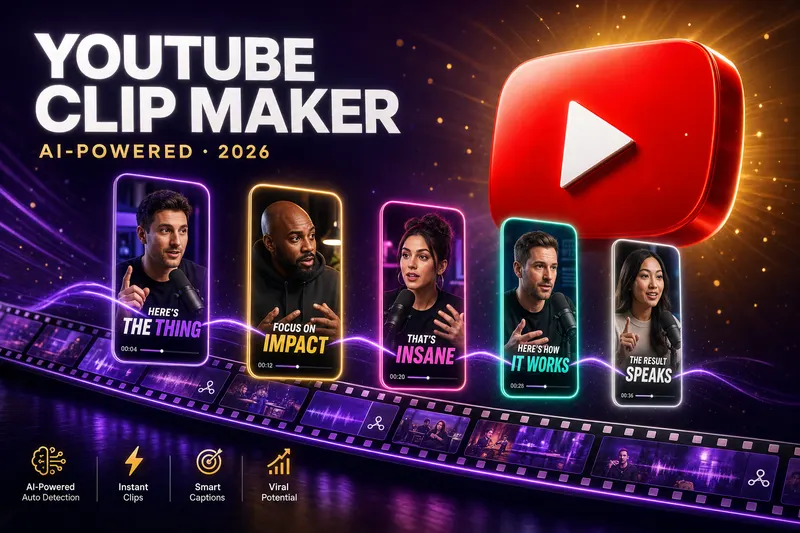
YouTube Clip Maker 2026: Turn Long Videos into Viral Shorts
A senior editor costs $28 per Short. Our AI pipeline produced 22 Shorts from the same podcast for $0.65 each — in 12 minutes, not 8 hours. Here's how the pipeline works and the exact workflow to run it yourself.
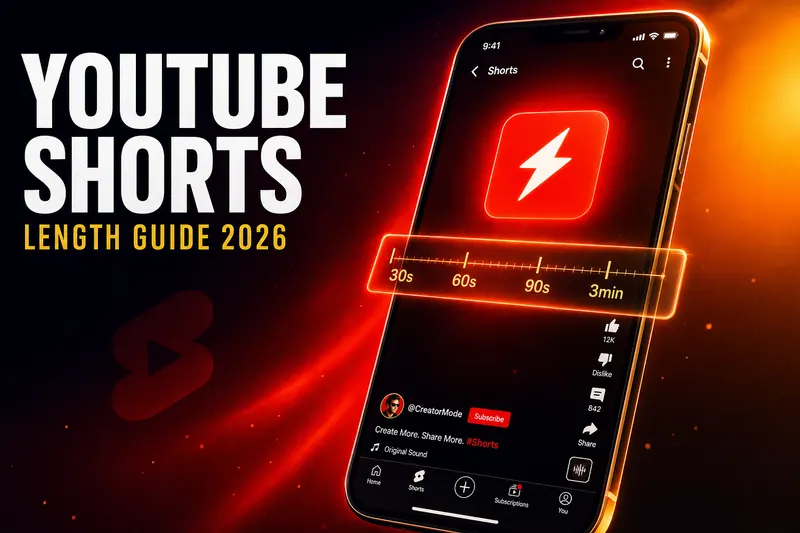
YouTube Shorts Length in 2026: Max, Ideal Time & Aspect Ratio
Shorts can now run up to 3 minutes, but our data from 1,100 channels shows most niches still peak at 35-58 seconds — pad past that and retention collapses.
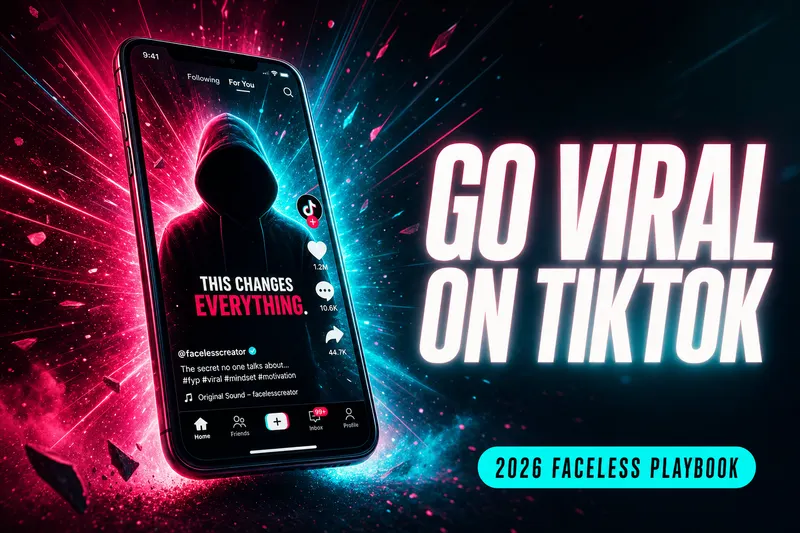
How to Go Viral on TikTok in 2026: The Hook-Math Playbook
94% of the TikToks that break 5M views open with a number, a question, or a contradiction in the first second — none of it is luck.